Since November last yearSage
Integrate your Sage account with Helm to simplify your accounting processes and keep your records in sync
Last updated 11 months ago

Follow the steps below to configure and connect your Sage accounting channel
Create Your Sage Channel
Go to Settings > Accounting Channels
Click on Sage from the list of available integrations, then click Install to begin setup
Or, click Add New Channel if you’re creating an additional or separate Sage channel
Channel Details
Active – Yes / No toggle to activate the channel
Name – Enter a unique channel name
Product Settings
Locale - Choose which best suits you
Add Products – Choose whether to allow Helm to add products to Sage
Create Products – Enable or disable product creation from Helm
Account Nominal Code – Enter the nominal code used in QuickBooks
Fulfilment & Tax Settings
Fulfilment Client – Choose the default fulfilment client
Once everything is configured, click Submit
⚠️ Make sure your channel name is unique — if not, an error will appear
When the setup is successful, you’ll see a confirmation message

Connect to Sage
Locate your newly created channel in the list
Click the Link icon underneath the channel name

Sign In to Sage
If you're not signed in, you will be prompted to log in to your Sage account
Enter your email address
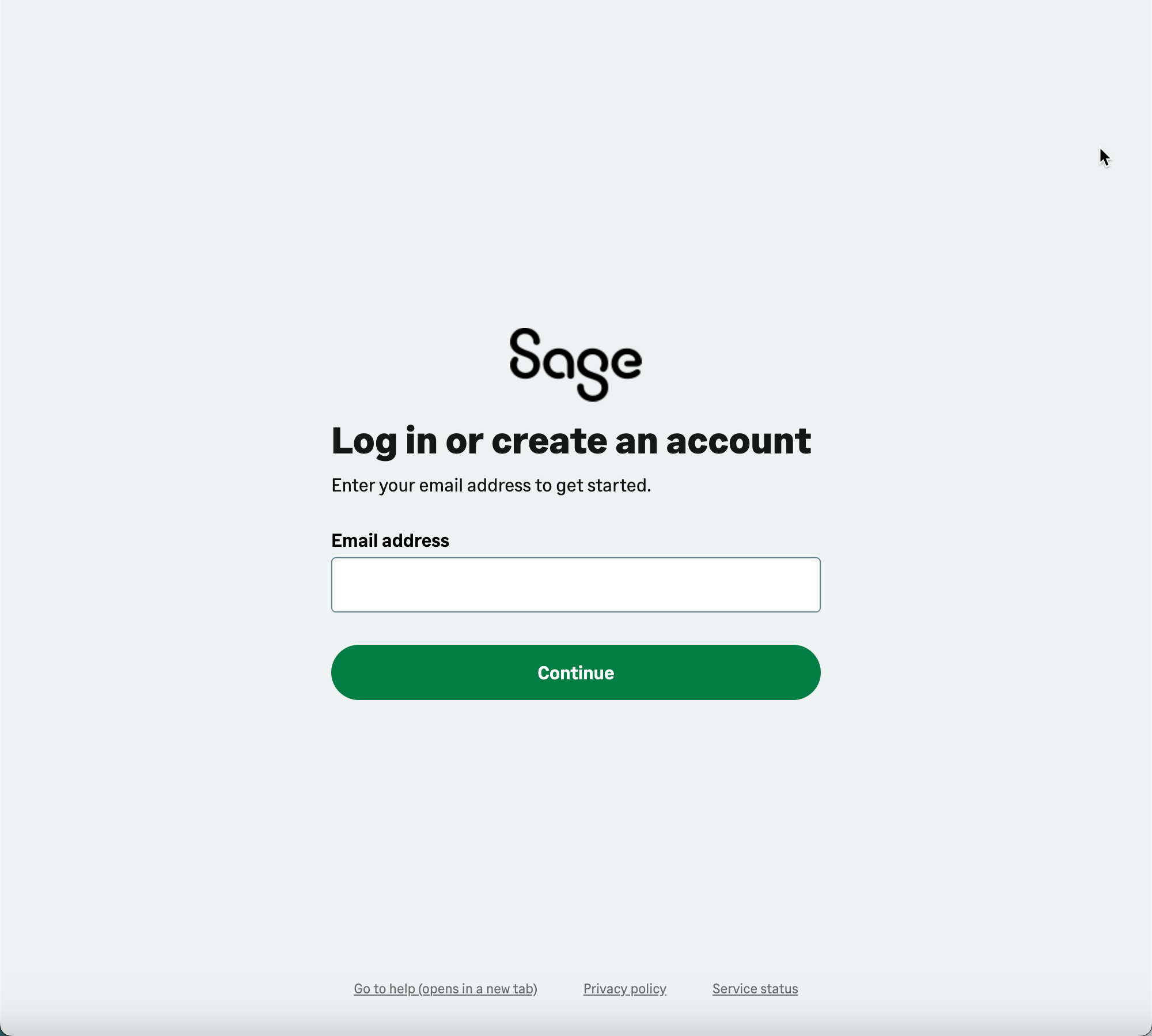
Click to maximise the image
You will be redirected to Create your account if you don’t have an account or enter the wrong details, double check your details are correct if you already have an account.
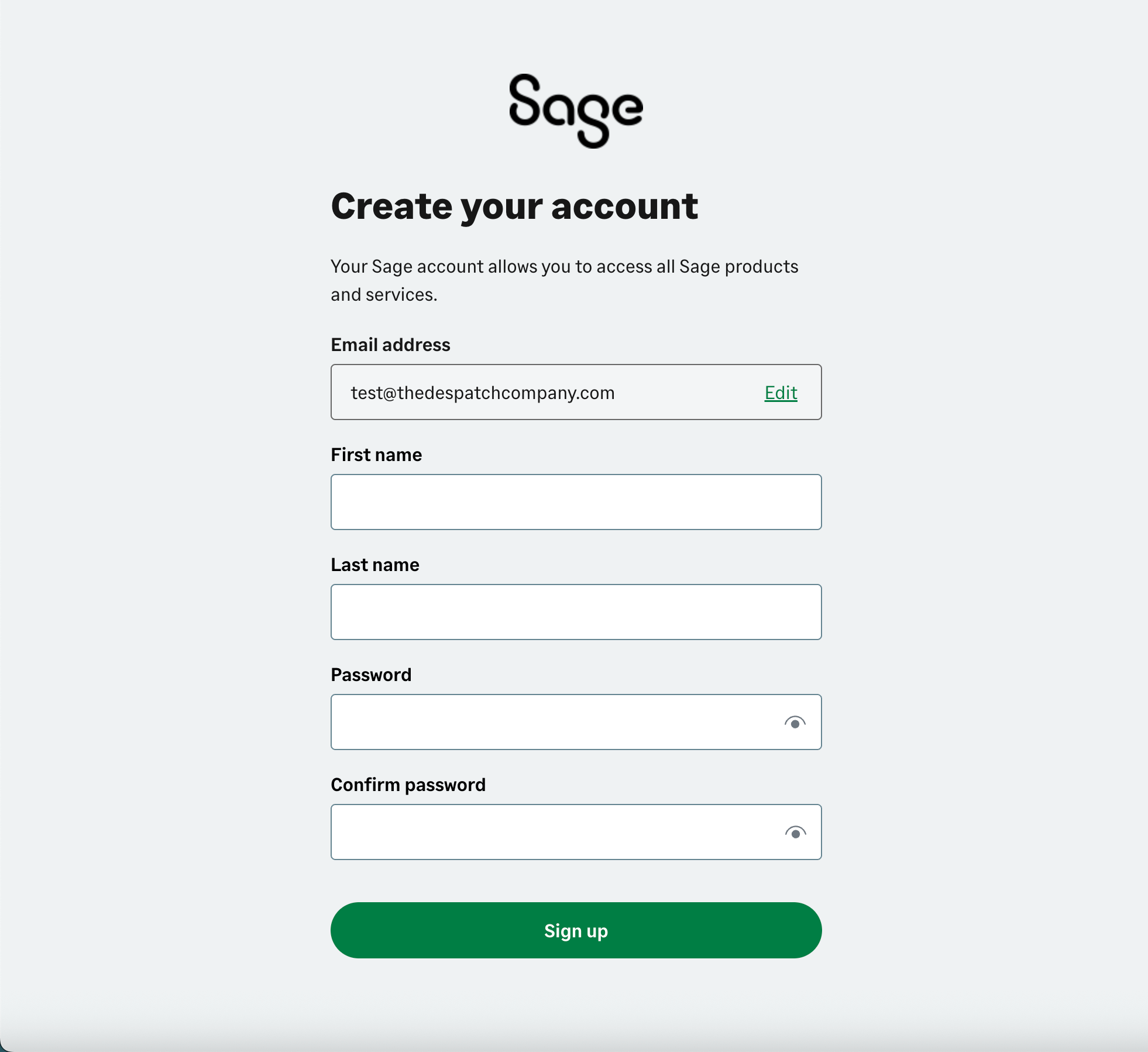
Click to maximise the image
If you’re already signed in, you’ll be taken directly to the connection page

Authorise the Connection
Click the Allow Access or Connect button to authorise the link between Helm and your Sage account
Once authorised, your Sage channel will be successfully connected and ready to use

Need Help?
If you need help with technical setup, please contact Helm Support

Was this helpful?
Still need help? Share an idea