eBay Integration Setup Guide
This guide walks you through the process of integrating eBay as a sales channel within Helm. You'll learn how to create and name the channel, connect your eBay account securely, and complete the authorisation process to begin syncing orders and inventory.
Last updated 11 months ago


Prerequisites
Before you begin, ensure:
You have administrative access to Helm.
You are signed in to your eBay Seller Account (or have login credentials ready).
Step 1: Create the eBay Sales Channel
From your Helm dashboard, navigate to Settings in the bottom-left corner.
Select Sales Channels from the menu.
Locate eBay in the list of available integrations and click Install.
In the channel creation screen, you will see a single required field:
Name – Enter a unique name to identify your eBay channel (e.g. eBay - UK Store).
The name must not have been used for any other channel.Click Submit.
⚠️ If the name you’ve entered has already been used, you will see an error message. Simply try a different name.
Optional configuration tabs include:
Settings - You can set up your warehouse and its unique settings.
Stock Control – Set up Auto Sync Stock.
Brand – Setup your Company Information for this sales channel below. By default your Company Information as set in General Settings will be used.
Commercial Invoice – Setup your Commercial Invoice Information for this sales channel below. By default your Commercial Invoice Information as set in General Settings will be used.
Despatch Emails – Do you want Helm to send out an order despatched email with carrier tracking information (if applicable)? If you do setup your Despatch Email for this sales channel below.
Feedback Emails – Do you want Helm to send out an order feedback email? If you do, setup your Despatch Email for this sales channel below.
Adjust these according to your business requirements.
Once all fields are complete, click Submit.
If the submission is successful, a confirmation message will appear indicating the channel has been created.
Step 2: Connect the eBay Channel
After creating the channel, you will see it listed under Sales Channels.
Click the Link icon next to your newly created eBay channel to initiate the connection.
You will be redirected to a secure eBay authorisation page.
Click I agree to grant Helm the necessary permissions to integrate with your eBay account.
If you are not already logged into eBay, you will be prompted to sign in with your seller account credentials.
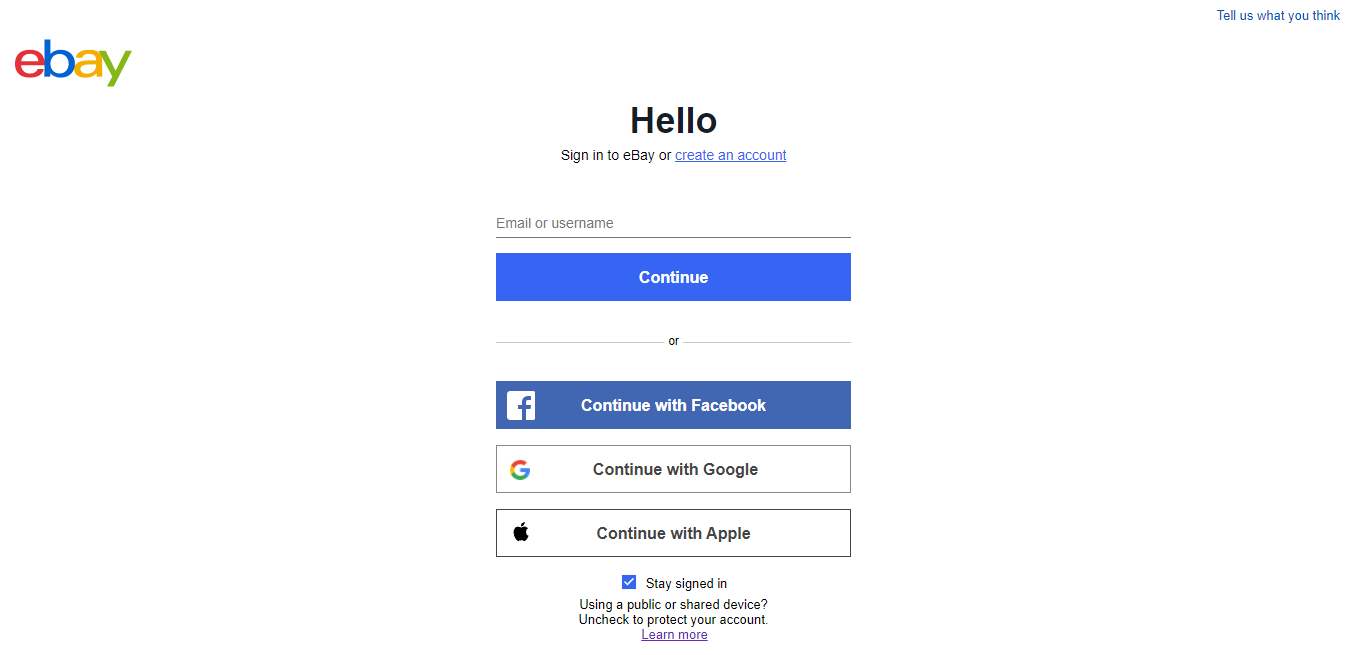
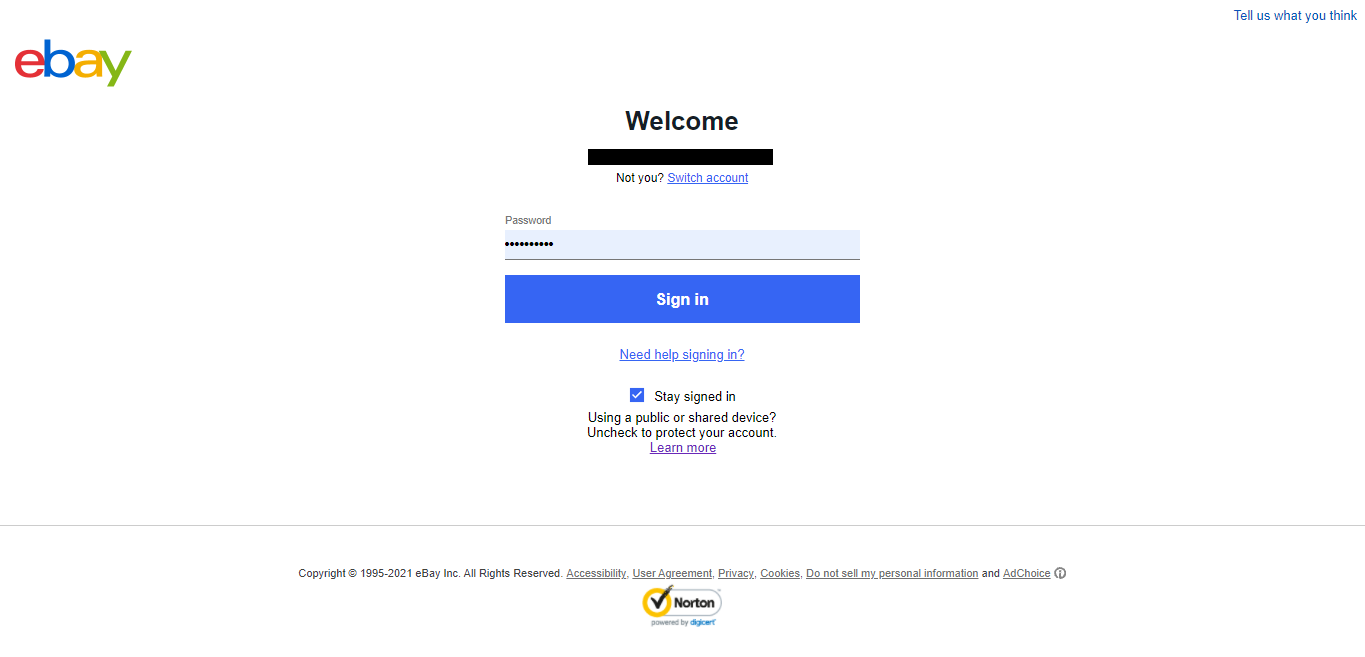
If you are already logged in, you will immediately see a success message confirming the authorisation.
Completion
Once authorisation is complete:
Your eBay sales channel is now fully connected.
Orders and inventory will begin syncing automatically according to your system configuration.
Additional Notes
You may revisit the Sales Channels area at any time to update your eBay integration settings.
Ensure your eBay account remains active and that authorisation has not expired to prevent interruptions.
You can install multiple eBay channels for different stores or regions using distinct names.